Edge Config
Configure Vercel Edge Config read and optional write access
Variables
| Variable | Required | Purpose |
|---|---|---|
VERCEL_EDGE_CONFIG_ID | Yes | Identifies the Edge Config store (ecfg_...). |
VERCEL_EDGE_CONFIG_TOKEN | Yes | Read-access token for feature-flag reads. |
VERCEL_API_TOKEN | Optional | Write/update access from app-side operations. |
Read Access (Required)
Read access requires both VERCEL_EDGE_CONFIG_ID and VERCEL_EDGE_CONFIG_TOKEN.
Steps
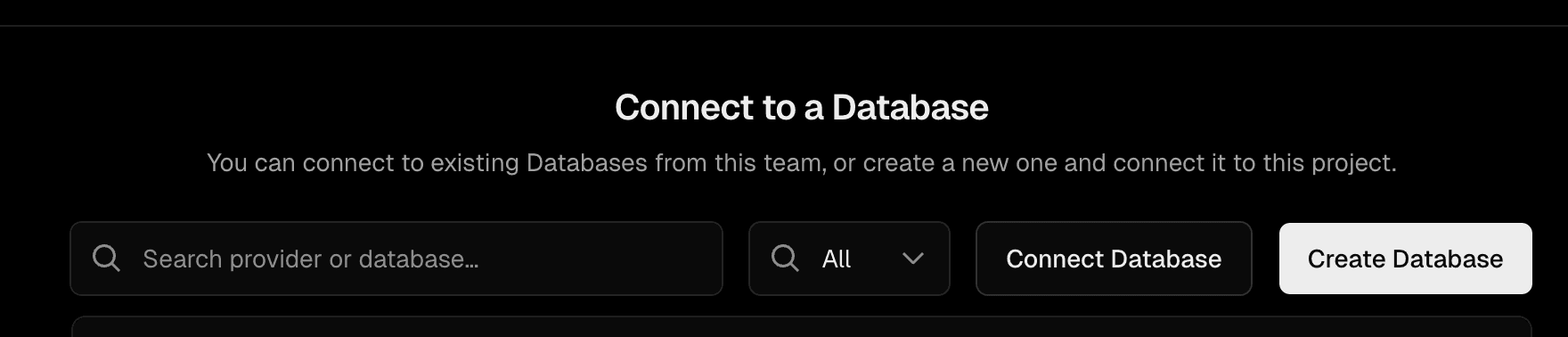
- Open Vercel Storage URL:
https://vercel.com/<YOUR_ORG_SLUG>/~/stores - Click
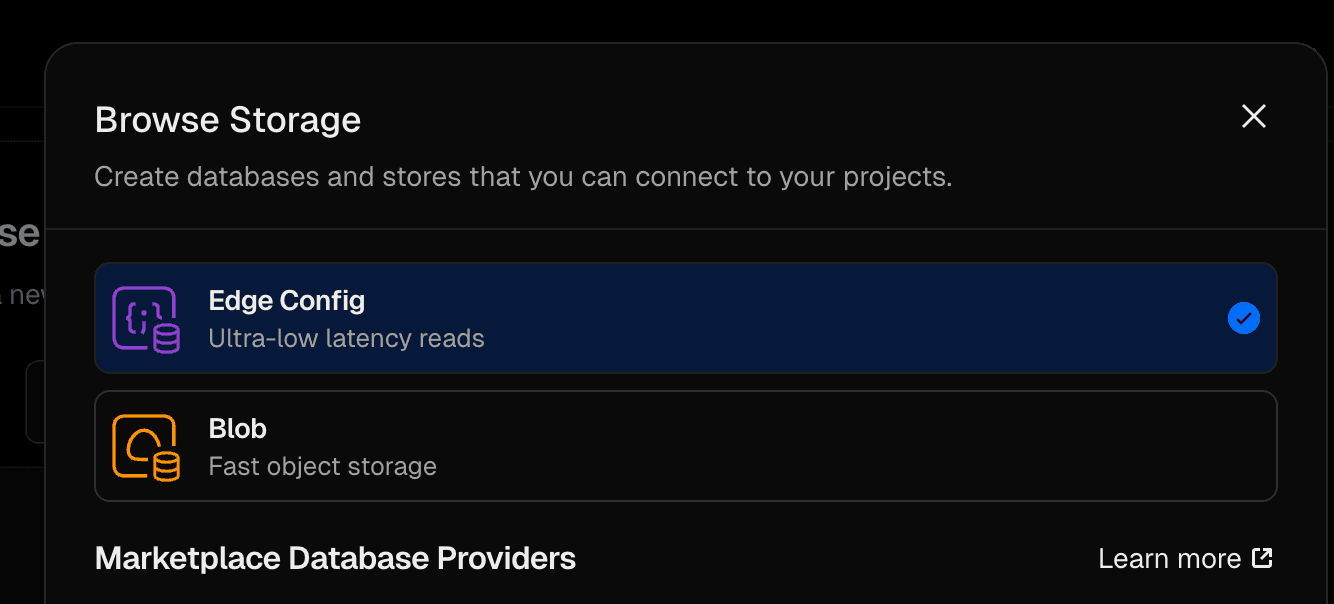
Create Database. - In the provider picker, select
Edge Config. - Choose a store name and click create.
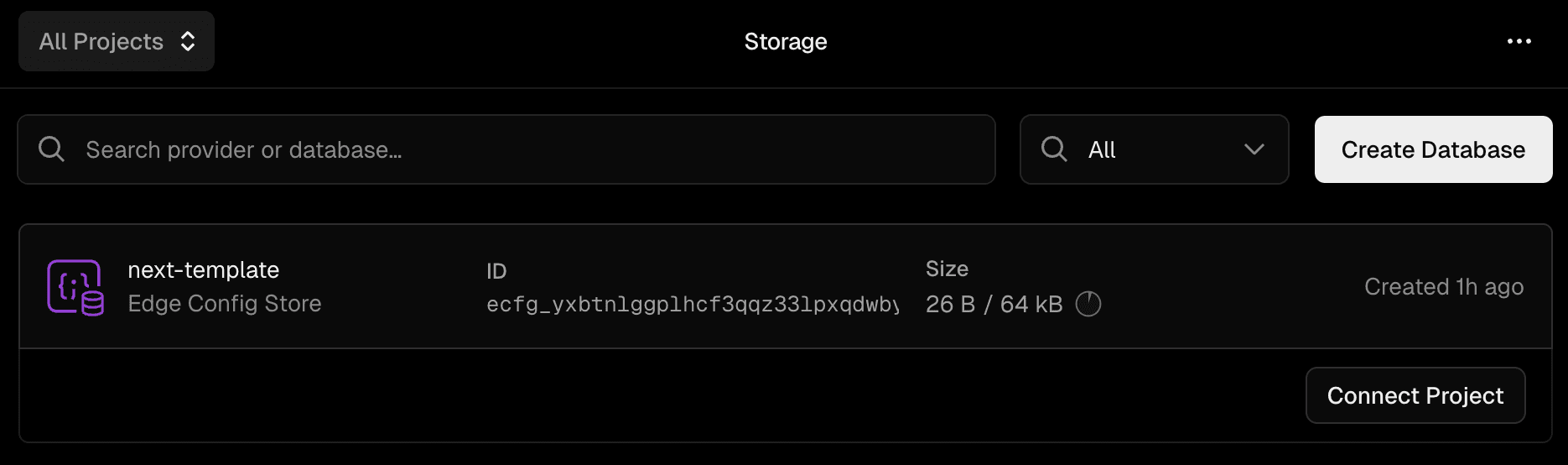
- In the storage list, click the new Edge Config store row.
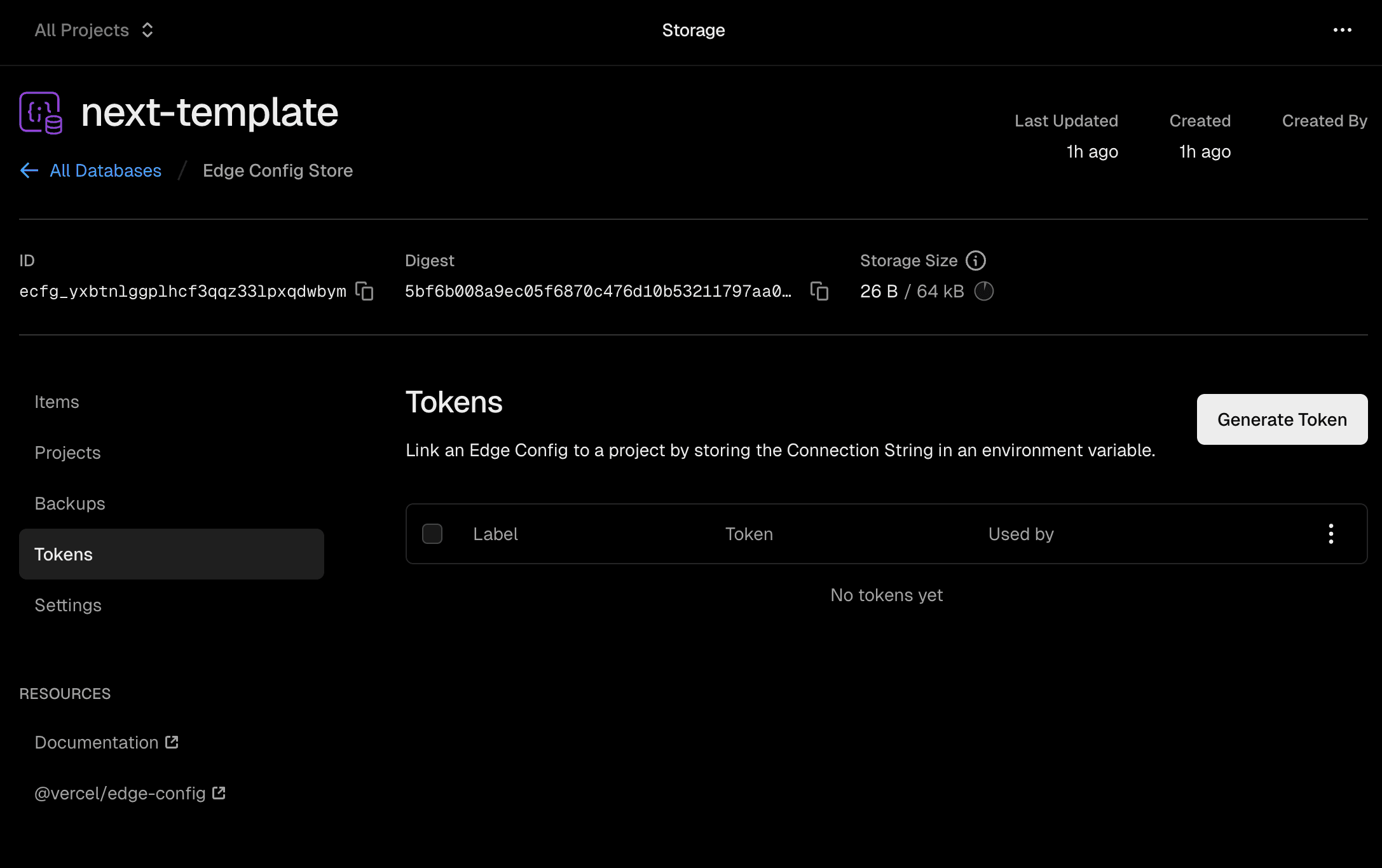
- Copy the storage ID (
ecfg_...) and paste intoVERCEL_EDGE_CONFIG_ID. - Open
Tokensfrom the store sidebar/menu. - Click
Generate Token, choose a token name, copy the generated UUID, and paste intoVERCEL_EDGE_CONFIG_TOKEN.
Optional Write Access
VERCEL_API_TOKEN is only needed when your app updates Edge Config values from server-side operations.
Steps
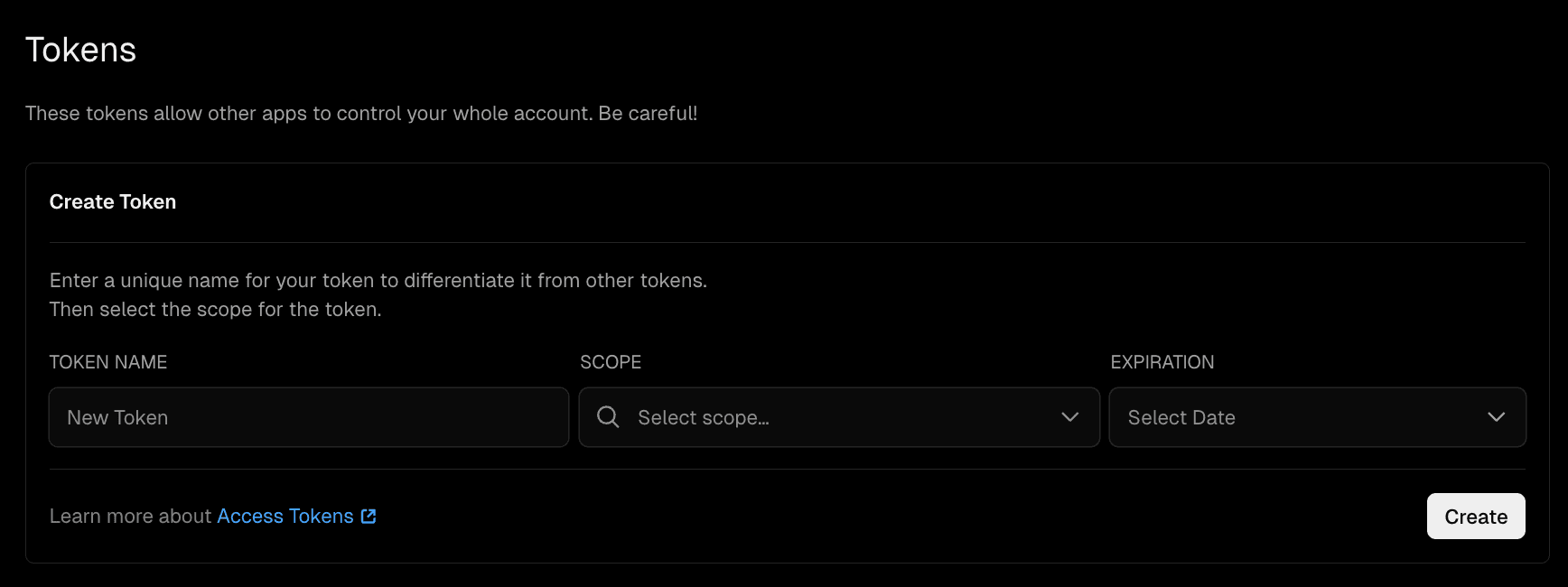
- Open Vercel account tokens: https://vercel.com/account/settings/tokens
- Click
Create Token. - Fill form values:
- Name:
edge-config - Scope: your team (for example
My Team) - Expiration:
No expiration(or your security policy)
- Name:
- Click
Create. - Copy token and save to
VERCEL_API_TOKEN.
Optional Token
If your app only reads feature flags and never updates them, you can leave VERCEL_API_TOKEN unset.
Copy/Paste Mapping
VERCEL_EDGE_CONFIG_ID="ecfg_xxxxxxxxxxxxx"
VERCEL_EDGE_CONFIG_TOKEN="xxxxxxxx-xxxx-xxxx-xxxx-xxxxxxxxxxxx"
# Optional
VERCEL_API_TOKEN="xxxxxxxxxxxxxxxx"
Screenshots