Google Maps And Cloud Service Account
Configure maps API key, map style ID, and service account credentials
Variables
| Variable | Required | Purpose |
|---|---|---|
NEXT_PUBLIC_GOOGLE_MAPS_API_KEY | Yes | Browser API key for maps/places requests. |
NEXT_PUBLIC_GOOGLE_MAP_ID | Conditional | Required only for map view components that use styled map IDs. |
GOOGLE_CLOUD_CLIENT_EMAIL | Yes | Service account client_email. |
GOOGLE_CLOUD_PRIVATE_KEY | Yes | Service account private_key. |
Enable APIs
- Open https://console.cloud.google.com/welcome.
- Select your project.
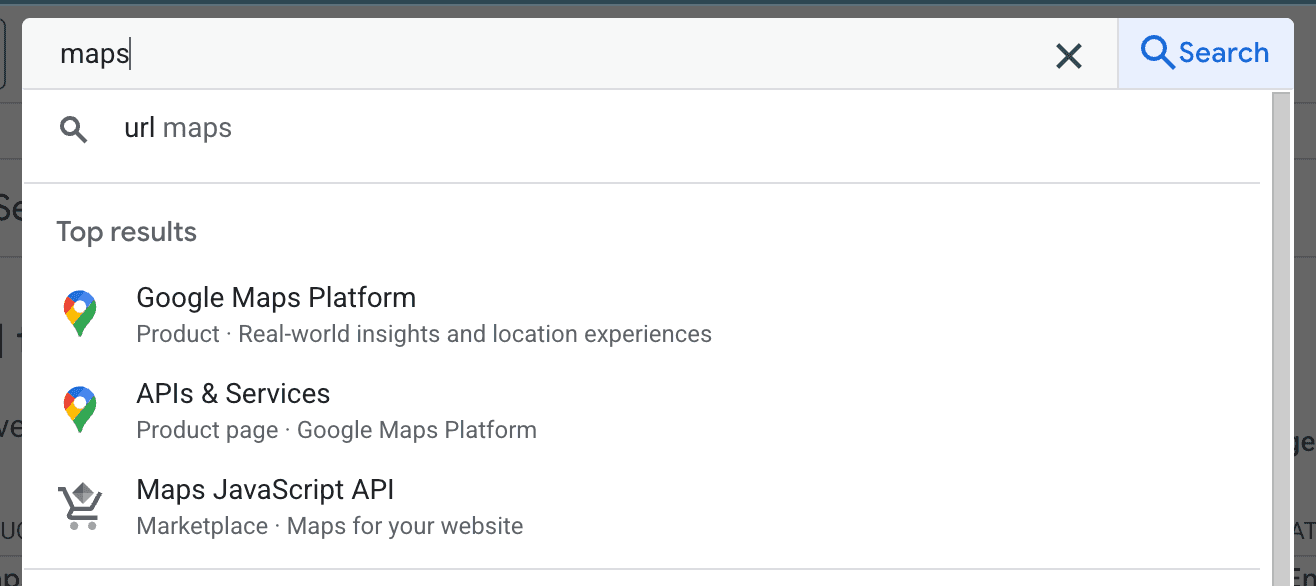
- In the top search bar, type
Mapsand open theAPIs & Servicesresult (Google Maps icon). - In
APIs & Services, openLibrary. - Enable required APIs:
- Geolocation API
- Geocoding API
- Places API
- Places API (New)
- Maps JavaScript API
- Maps Embed API
- Directions API (optional)
Some map APIs may require billing to be enabled on the Google Cloud project.
Create Maps API Key
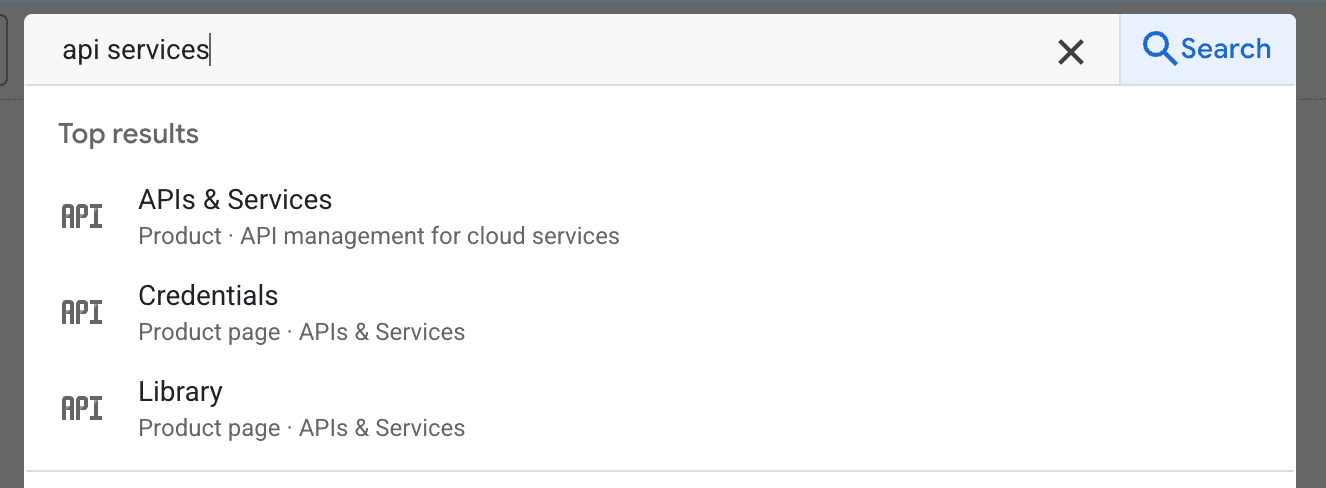
- In Google Cloud search bar, type
APIs & Services. - Open
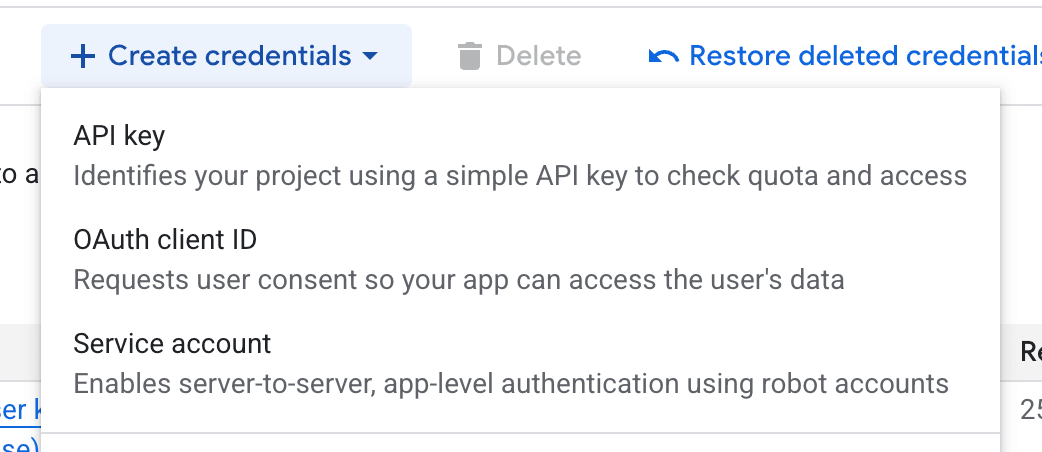
Credentials. - Click
Create credentials -> API key. - Give the key a name.
- In application restrictions, choose:
- no restrictions, or
- HTTP referrers with
localhost:3000and your production domain.
- In API restrictions, allow only the map APIs you enabled above.
- Copy key into
NEXT_PUBLIC_GOOGLE_MAPS_API_KEY.
Create Map Style ID
- Open Google Maps Platform.
- Go to
Styles(map styles). - Click
Create map style. - Save style with a name.
- Copy style/map ID into
NEXT_PUBLIC_GOOGLE_MAP_ID.
Service Account Credentials
- Open Firebase console for the same project.
- Go to
Project Settings -> Service Accounts. - Click
Generate new private key. - Confirm key generation and download the JSON file.
- Extract fields:
- JSON
client_email->GOOGLE_CLOUD_CLIENT_EMAIL - JSON
private_key->GOOGLE_CLOUD_PRIVATE_KEY
- JSON
GOOGLE_CLOUD_CLIENT_EMAIL="firebase-adminsdk-xxx@project-id.iam.gserviceaccount.com"
GOOGLE_CLOUD_PRIVATE_KEY="-----BEGIN PRIVATE KEY-----\n...\n-----END PRIVATE KEY-----\n"
Private Key Newlines
Keep newline formatting intact. If stored with escaped \n, runtime parsing should convert it back to real newlines.
Screenshots